
Protecting your University account
Multi-factor Authentication (MFA) provides an additional layer of security for your University account. It helps protect your information by requiring more than just a password to sign in.
You may already use MFA in everyday life as it's used on a regular basis for many online transactions such as banking, shopping, or PayPal. By adding a second verification step, MFA makes it much harder for unauthorised users to gain access to your account, even if your password is compromised.
When signing in, you'll be asked to verify your identity using two forms of authentication:
- Something you know: your username and password
- Something you have: a trusted device, such as your mobile phone
Both steps must be completed before access is granted.
Why MFA is important
Cyber criminals are increasingly successful at stealing passwords through phishing, malware and other attacks. MFA significantly reduces the risk of account compromise by requiring an additional verification step. .
MFA is recognised as a security best practice and helps protect your personal information, University data and online services.
When you'll be asked to use MFA
You may be prompted to complete MFA when:
- Accessing Microsoft 365 services, such as Outlook, SharePoint and OneDrive for Business, or other University services that use Microsoft Single Sign-on from off campus or while connected to Eduroam.
- Signing in from a new location, a new device or a new application
- Microsoft detects unusual or potentially risky sign-in activity
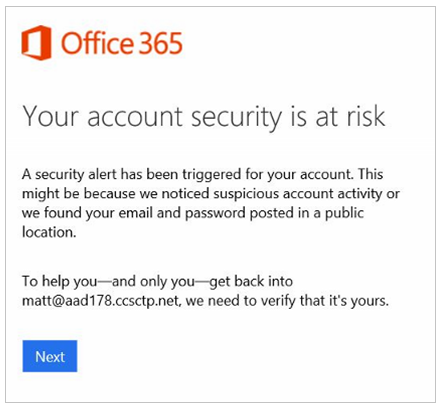
In certain circumstances, if suspicious activity is detected on your account or your credentials have appeared in a known data breach, you will be asked to verify your identity and reset your password
Setting up Multi-factor Authentication
All staff and students are required to register for MFA on their University Microsoft 365 account.
We recommend setting up at least two authentication methods so that you can still access your account if one methods becomes unavailable.
Available methods include:
- Microsoft Authenticator app (recommended)
- Text message verification
- Phone call verification
Getting started
Visit the IT Account Security area on Toolkit for step-by-step guides, videos and additional support material
Recommended setup guides:
- Set up MFA (Multi-factor Authentication) using Microsoft Authenticator App
- Set up MFA (Multi-factor Authentication) using Phone
Microsoft Authenticator
Microsoft Authenticator is the University's preferred MFA method. It offers:
- Quick approval notifications
- Greater security than text messages
- Offline authentication codes when you have no mobile signal or internet connection
- Access to newer security features, including passwordless sign-in
Stay Alert to MFA Fatigue Attacks
MFA fatigue attacks (sometimes called MFA bombing or MFA spamming) occur when attackers repeatedly send authentication requests, hoping you will approve one by mistake.
If you receive an MFA prompt you weren't expecting:
- Do not approve the notification
- Change your password immediately
- Review your recent sign-in activity
- Contact the IT Service Desk via chat, myit.abdn.ac.uk or email
servicedesk@abdn.ac.uk if you need assistance or continue to receive notifications
Remember: if you are not actively signing in, never approve an MFA request.
FAQs
- Do I need to keep the Microsoft Authenticator app after first set up?
-
Yes. You must keep the Microsoft Authenticator app as you will need to use it to approve/authenticate when you sign into your University Microsoft 365 account when off campus or on the eduroam network.
- I changed my registered phone number - what should I do?
-
If the phone number that is recorded as a method of authentication for you is incorrect you will need to re-setup your Security Info .
- If you have an alternative method of authentication such as the Microsoft Authenticator app, use that to sign in and then delete your old phone number and set up your new one.
- If you are unable to access this webpage because you cannot authenticate, please use MyIT to report an issue with the IT Service Desk .
- It is recommended that you set up two or more methods of authentication.
- I received an email to say my account is blocked or email/calendar no longer work on a smartphone - what can I do?
-
The mail/calendar app on your device may not be compatible with MFA. Consider installing the Outlook iOS/Android app, which does support MFA. See configuration guides on Toolkit .
If you want to continue to use the iOS Mail app try removing your University mail account and re-adding it. Configure your mail account by signing in as instructed in the guide for iOS devices . - My method of accessing email is no longer working - what can I do?
-
If you have been using an email app or client that uses Basic Authentication (e.g. Outlook 2013; some native email clients on mobiles) this will no longer work.
You will now only be able to access your Microsoft 365 email account using an app or client that supports Modern Authentication such as:
- Outlook 2016 or later (PC or Mac)
- Outlook app (iOS and Android)
- Apple Mail (MacOS 10.14+; iOS 11+)
- Android Mail (Versions 6 and above)
See configuration guides on Toolkit .
Alternatively, you can use Outlook on the web in any browser.
- I'm changing the mobile device I use for MFA - what should I do?
-
If you replace the mobile device that your code or verification request is sent to you will need to re-setup your Security Info .
- If you have your old device use that to authenticate before setting up methods on your new device.
- If you don't have the old device but have retained a number that was used as a method of authentication, check that works on your new device before setting up other methods.
- Once you have set up methods on your new device, delete all methods pointing to the old device and (if relevant) delete your account in the Microsoft Authenticator app on your old device, before passing it on or disposing of it.
If you are unable to access this webpage because you cannot authenticate, please use MyIT to report an issue with the IT Service Desk .
- How do I change my method of authentication (or add another method)?
-
You can do this via the setup Security Info website.
- What is the Microsoft Authenticator app?
-
This is a dedicated app that allows you to set up your smartphone or tablet as a means of authenticating access to your University Microsoft 365 account when off campus or on the eduroam network. It will not add your University email account to your device.
- There is a minimum requirement of iOS11 to install on an iPhone or iPad.
Check if your device is listed by Apple as being supported. - The requirement on Android is Version 6 or above.
- There is a minimum requirement of iOS11 to install on an iPhone or iPad.
- Do I need to have a smartphone to use MFA?
-
No, you can also use a mobile phone or tablet. However, we recommend that if you have a smartphone, you use the Microsoft Authenticator app as this is the simplest way to approve an authentication prompt.
- My phone number was already there when I set up MFA for the first time. Why?
-
This is because you provided your phone number when registering for Self-Service Password Reset (SSPR) and the MFA and SSPR identity systems are closely linked.
- Do I need an Internet connection or phone signal?
-
No. If you have set up the Microsoft Authenticator app as an authentication method, it can generate a passcode without an internet connection or phone signal. Simply open the app to access the passcode. To avoid charges when overseas, you may want to use this authentication method.
If you have chosen to receive a passcode by text or phone call you will require a phone signal but not an internet connection. - I have set this up but only been prompted once for MFA, how can I check I have done this properly?
-
Once you've set up an authentication method, you can login into the setup Security Info website as it is locked behind an MFA prompt.
- I have dyscalculia, so receiving a code isn't the best for me. Is there another option available?
-
The Microsoft Authenticator app allows you to choose Approve or Deny rather than enter a series of digits. You can download the Microsoft Authenticator app from your App store.