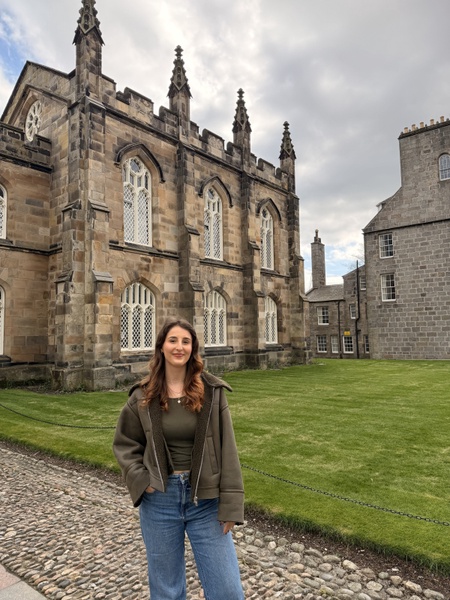
Throughout my undergraduate studies at the University of Aberdeen, I had some awareness of accessible content, particularly as a student with ADHD and dyslexia.
However, I now realise that I did not fully understand how common accessibility issues are or how significantly they can affect all students.
Over the last year, working with the Centre for Academic Development (CAAD) as an eLearning Support Assistant (eLSA), I have conducted accessibility audits courses on MyAberdeen, reviewed videos on Toolkit to ensure they have audio descriptions, and created a checklist for creating accessible recordings for students and staff.
Through this work, I developed a deeper understanding of the most frequent accessibility issues with content. In this blog post, I aim to share these insights so that, as students, we can produce content that is clear and inclusive for everyone.
Do your images include alternative text?
One of the most common accessibility issues I have encountered is images without an explanation of what they show. When working on course accessibility audits and creating Massive Open Online Courses (MOOCs), I realised how common it is to not pay attention to the images we attach to our work. I think everyone has added images, charts or screenshots to their PowerPoint presentation at some point. Personally, I have done it countless times, but never paid too much attention to it, and I did not think to describe what the picture is showing. After working in CAAD and researching accessibility, I’ve seen how missing alternative text affects screen reader users. Without it, key information can be lost, making content confusing or inaccessible - especially for people with visual impairments. It also appears if images fail to load, helping everyone understand the content.
Adding alternative text to ensure that the images are accessible to everyone is very straightforward. Many platforms, such as Microsoft Word and PowerPoint, have a built-in option to add alternative text by right-clicking an image. You are then asked to briefly describe the purpose or content of the image in a way that makes sense in context. For more complex visuals like graphs, you may also want to include a longer explanation in the surrounding text. For images that are only there as a decoration, you can mark them as such, allowing the screen reader to ignore them.
Are your file titles descriptive?
Another accessibility issue I have noticed when auditing courses on MyAberdeen is the lack of descriptive file titles. File names are crucial to ensure content is accessible. When file titles (like document names, links, attachments, etc.) are not descriptive, it makes it very hard for people to understand what they are, especially if they are using screen readers as they cannot see visual cues and therefore are unable to understand the meaning from the context of that page. For example, if a file is named something like “doc2.pdf”, it gives no meaning; however, naming it with the use of relevant keywords helps to accurately depict the file’s content or purpose, for example: “budget_plan_February.pdf”. This small, often overlooked, change can make a significant difference in improving accessibility for all users.
Are you editing your video captions?
While working as an eLSA on creating Future Learn previews of MyAberdeen content, one of my tasks was to review lecture videos. I found that captions are auto generated and can often contain errors. Captions play a crucial role in making content accessible, especially for students who are deaf or hard of hearing. They are also essential for students who are non-English speakers, students with learning differences, such as dyslexia or students who might study in a quiet space (e.g. library) and prefer to read the captions. Captions were incredibly important to me as a non-native English speaker, as they supported my understanding and helped me to learn different kinds of accents.
Having developed an understanding of the importance of captions through my own experience as a student at the University of Aberdeen, and through my work on MOOCs, I learned that improving them does not require advanced technical skills and does not take as long as one might assume. The main thing you need to remember is to review the captions carefully, paying particular attention to any highlighted by Panopto as low-confidence words.
Can you provide audio descriptions in the videos you create?
A different project I worked on involved checking the eLearning staff development videos on the Toolkit to ensure they included audio descriptions. Audio descriptions make visual content accessible to people who cannot see by providing a verbal explanation of what is happening on the screen. They describe key visual elements such as actions, settings, gestures, and on-screen text that would otherwise be missed. This helps people who are blind or have low vision, as well as those using small devices. Audio descriptions also improve understanding and retention, which is especially important for students.
When adding audio descriptions, the key is simplicity; describe what is happening on screen so that no one misses out on important information. Avoid “click here”, “click this icon”, or similar phrases, include the proper name of on-screen buttons. Try to keep your descriptions short so they do not disrupt the natural flow of the video. You can include them during natural pauses in the audio, add them while editing, or provide them as a separate audio track if the platform allows.
Check out the Accessibility Checklist
If you would like more information on how to create accessible Panopto recordings, I have recently created a quick guide explaining how to do so: Accessibility Checklist for Panopto Recordings. This checklist explains how to improve captioning and audio descriptions, with tips for recording setup and checking visual aids for accessibility.
Accessibility isn’t complex or time-consuming, it becomes integrated into our everyday work once we understand how and why it matters. By taking these simple steps, we can make our content clear and accessible to everyone.