
The EBSCO platform contains databases across many subject areas. Each database contains information on research published in selected journals and conferences. Some of the databases contain information related to books. Here are the databases currently available from EBSCO:
Anthropology Plus, Art Complete, ATLA Religion Database, British Education Index, Child Development & Adolescent Studies, CINAHL, Education Abstracts, Educational Administration Abstracts, ERIC, European Views of the Americas: 1493 to 1750, GreenFILE, LISTA, MLA International Bibliography with Full Text, Teacher Reference Center.
You can also find books on the EBSCO platform through our library catalogue, Primo. To access books you need to first sign in on Primo.

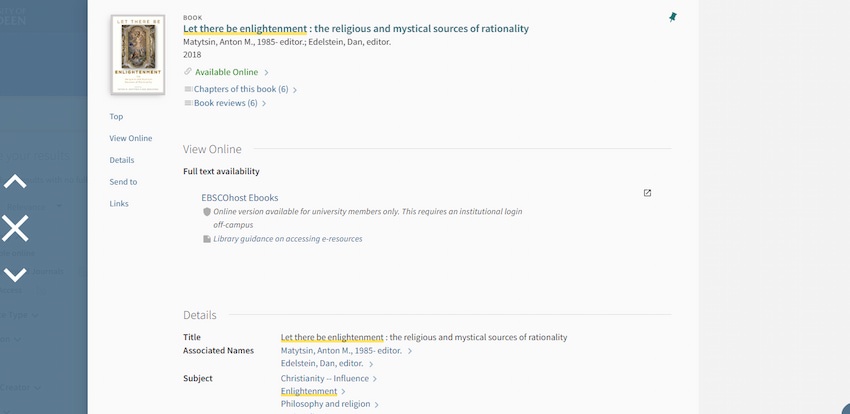
Search for the book on Primo. If the book is available from EBSCO, the following steps will apply:
Click on the title of the book to be taken to the book details page, then click through either 'Available Online' or 'EBSCOhost Ebooks'.
Once you are in EBSCO, the book will be displayed like so:
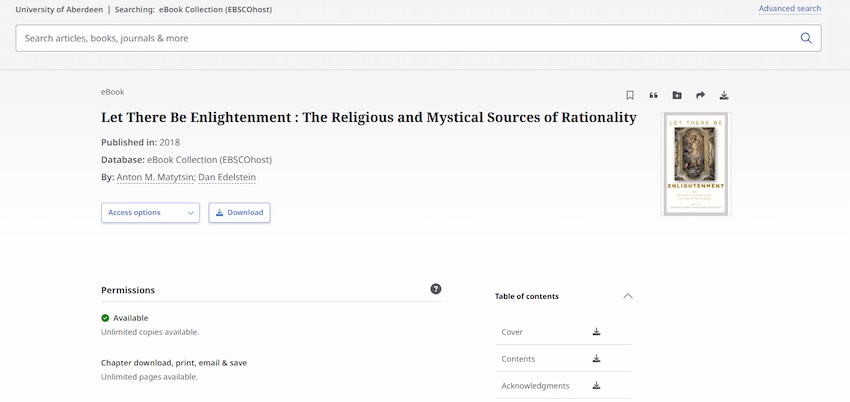
You have the options of Reading the book online ('PDF Full Text' or 'EPUB Full Text') or Download the item. If you choose to download, the following messages will be displayed on your screen. Please note that different books may have different downloading options, depending on the Digital Rights Management (DRM) agreements. For a non-DRM book, either select a chapter or page range to download, or select the 'Full ebook' tab and then choose a format and click 'Download':
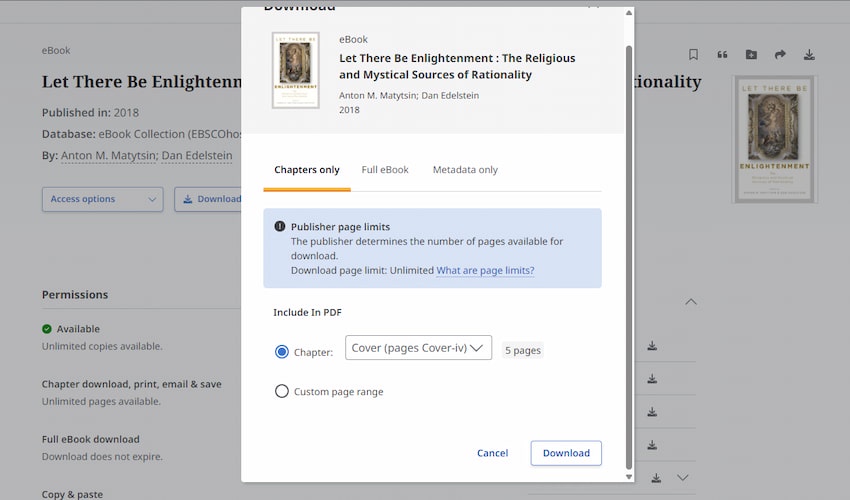
For a book requiring a DRM licence, please note that you will need to set up an EBSCO Personal Account. Advice on how to do so can be found in this section of the support site: How to create and manage an EBSCO Account.
Once the item is downloaded, the site recommends you open it with Adobe Reader. More information can be found at:
Searching within EBSCO Books in the eBook Viewer
Adobe Digital Editions: Download
Once you have found the book(s) you need in EBSCO, there are a range of options as to how you can use them. This Tools section can be found on the right hand side of the item’s display page as shown:
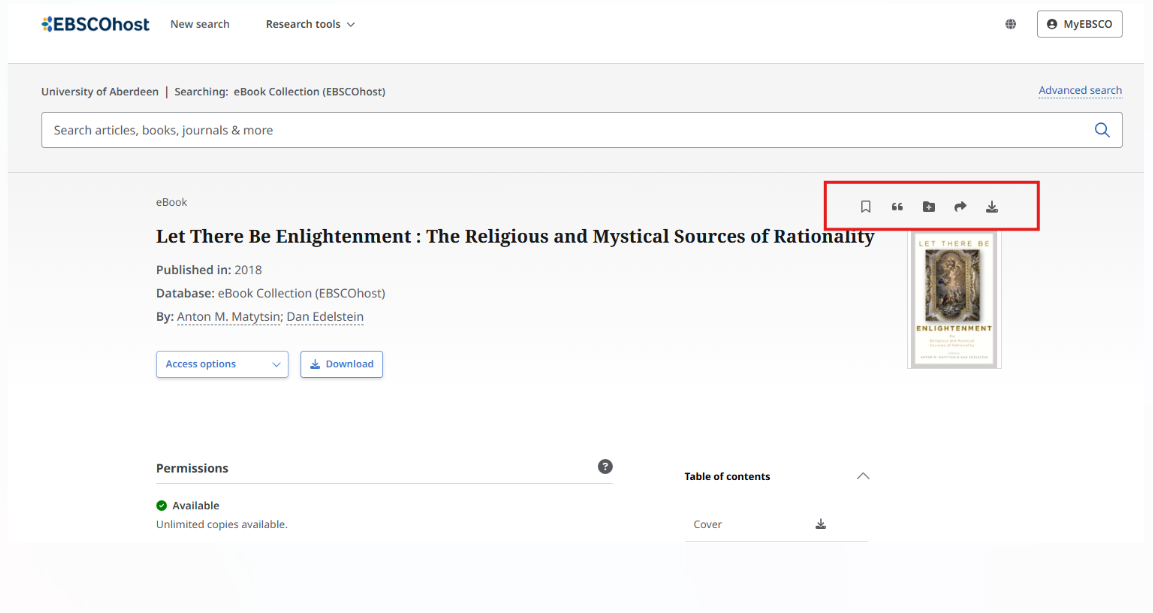
If you are reading online, similar icons are displayed across the top of the screen:
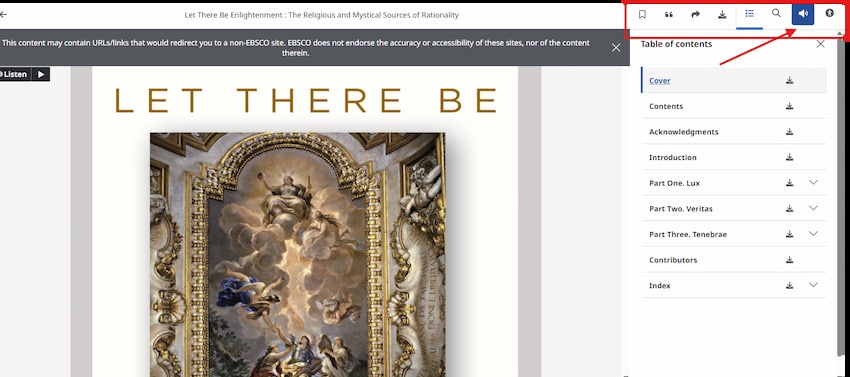
Adding/Saving Items to Folder: EBSCO offers this feature to act as a virtual bookshelf, where you also have options to save, print or email the details, and export them to RefWorks or similar programmes.
Exporting Bibliographic Details to Ref Works-Option to Export on right hand side of screen. Opens links to Ref Works and other providers, and can directly export. For further help, please see our detailed Library Guides.
Accessibility-The Help section includes an Accessibility Guide covering navigation of the site, the readers (PDF and EPUB), read aloud software and EBSCO’s commitments.
Help and Support-Extensive Help section on website (top right-hand side of screen). Includes user guides, accessibility pages and tutorials.
Licences-There are three categories here: ‘Unlimited User Access’; ‘Limited Access (3 Users)’, and ‘Limited Access (1 User)’. If the book is unavailable, the site will give various messages along the lines of ‘Item unable to download. Please Read Online’ or ‘Item unavailable for download, please try again later.’
If you wish to search a specific database on the EBSCO platform, please follow these steps:
- Go to Primo and sign in at the top right of the screen
- Select the Find Databases tab
- In the new window that appears enter EBSCO in the box called Database Search and click on search
- A list will be created containing the different databases which we currently have access to through the EBSCO platform
- Click on any one of the databases to link out to the EBSCO platform. Primo will open the database’s details page. In the View Online section click on the name of the database e.g. ERIC (EBSCO). Once on EBSCO you can change the particular database you are actually searching in. If off-campus, you may be asked to sign in via your institution. Select University of Aberdeen and sign in with your username and password.
For more information see our EBSCO worksheet.