This guide provides general guidance on how to use Primo to search for materials available in our Libraries, Special Collections and Museums. Primo contains records for both print and online materials across our modern and special collections.
Primo Video Guides
Experience a practical demonstration of how to get the best from our search discovery tool, Primo.
- Accessing Primo and Signing In
-
Navigate to: https://abdn.primo.exlibrisgroup.com/
Alternatively, navigate to Primo from the Library homepage.Members of the University: click on Sign in in the top right-hand corner. This gives you access to extra services.
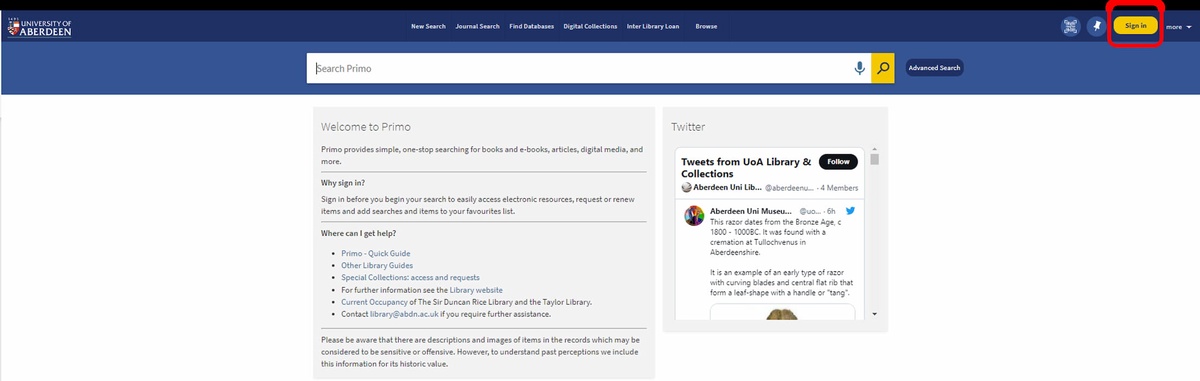
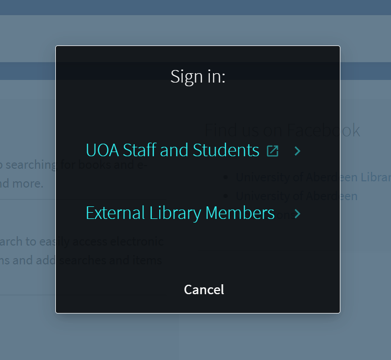
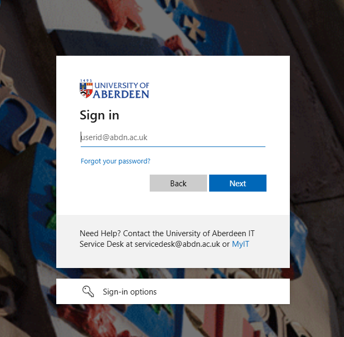
In the Sign in window, select University of Aberdeen Staff and Students. This will open the Microsoft Office sign-in screen, as shown below. Use your username followed by @abdn.ac.uk (e.g. u99jb22@abdn.ac.uk) and your password.
External members, visitors and members of the public: the search features in Primo are freely available to all users. External members of the Library can sign in with the barcode on their Library card and their PIN, to make requests and view their Library account. Other visitors to Primo are unable to sign in. Only University members can access our online materials through Primo. In all sites you will find PCs dedicated to accessing Primo.
- Primo Search Rules
-
- Boolean operators: combine your search terms using AND, OR, NOT
AND narrows a search, e.g. wellbeing AND exercise
OR broadens a search, e.g. sport OR exercise
NOT excludes unwanted results (but use with care!) e.g. earthquake NOT tsunami- Phrase searching: use double quotation marks to search for an “exact phrase”
e.g. “cognitive function”
- Truncation symbol: expand your search using *
e.g. psychol* finds: psychology, psychological, psychologist, psychologists
- Wildcard searching: use a question mark ? to find alternative characters within a word
e.g. wom?n finds woman, women
- Simple Search Box
-
There are six search options within the simple search function:
- All Collections searches all the categories given below:
- Online Access Materials searches across our collections of online materials
- Books+ searches physical books, e-books and journal titles held by the University of Aberdeen, including modern collections and the Special Collections Centre
- Articles+ searches many of our electronic journal articles and our e-book collections
- Course Reserves searches materials on particular courses
- Rare Books, Archival Material and Museum Items searches Special Collections and Museums
Simple search
To find a specific book enter keywords from the book's title and the author's surname into the search box. Select Books+ from the list of suggestions that appears as you type. This will focus your search to only our physical and online books.
Pears, R. and Shields, G.J., (2016). Cite them right: the essential referencing guide. London: Macmillan Education/Palgrave.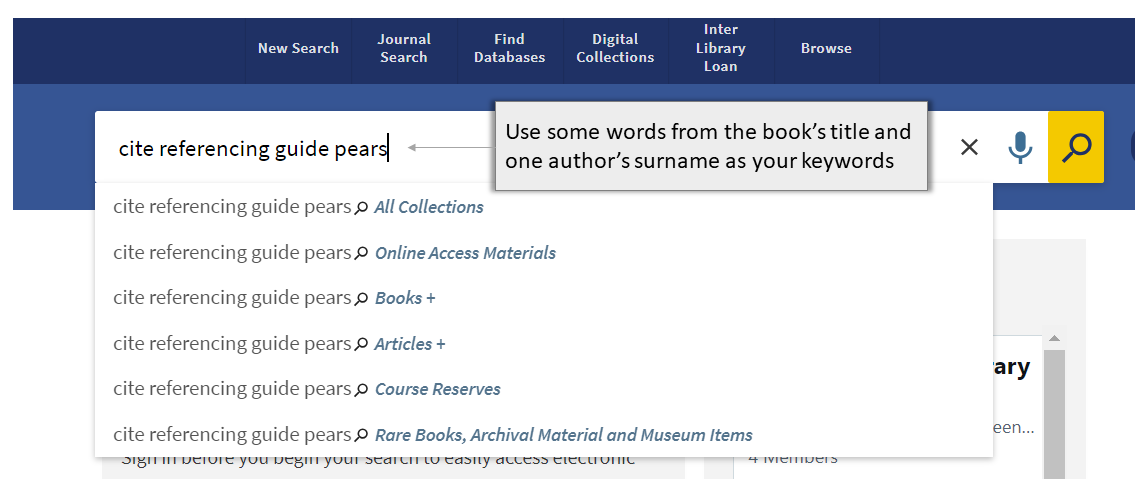
Results
Results are displayed in order of relevance, according to the search terms used. From the options down the left-hand side of the results screen you can:
- change the order in which the results are arranged, e.g. Author or Date-newest (A)
- select a format, i.e. available online or held by the library (B)
- determine the resource type, e.g. Books (C)
- narrow your search to a specific branch, e.g. Medical Library (D)
- select a year range (Creation Date), specific subject area or language (E)

Checking availability
- Printed items: Primo displays "Available at" underneath the item's record - click on a title to check the item's availability and location
- E-books: Primo displays "Available online" in records for e-books - click on a title to check full text availability
- The indication "X versions found" (F) can mean that we have multiple editions of a title, or, that a book is available in print and electronic format - click on X versions found to find out more
When looking at the details for a specific item, click on the large X icon on the left to return to the full list of results.
- Advanced Search
-
To carry out a search for materials on a subject, navigate to Primo's advanced search platform.
Remember to apply Primo's search rules to search effectively. (See above for search rules)
You can limit your search to specific document types by using the radio buttons, e.g. Books.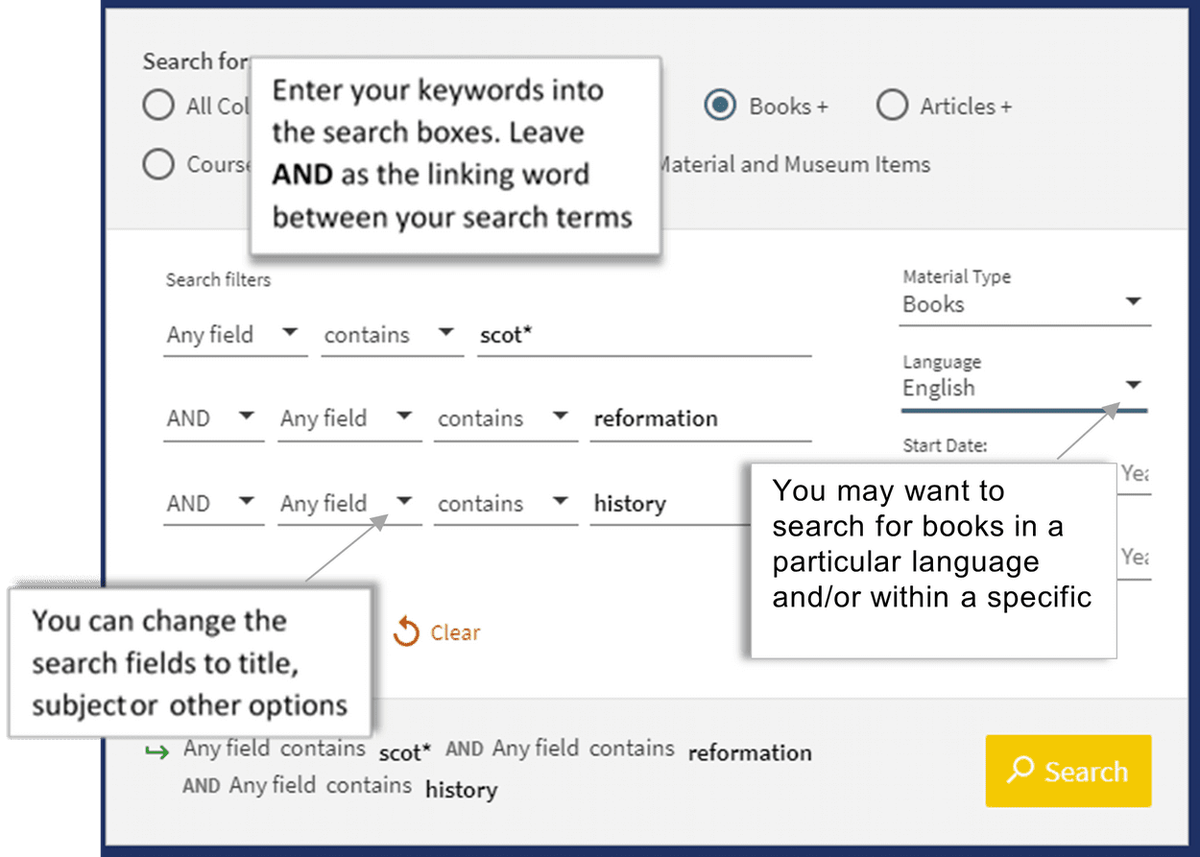
- Finding Databases and e-book Collections
-
To explore available databases and e-book collections in your subject area use the Find Databases option at the top bar.
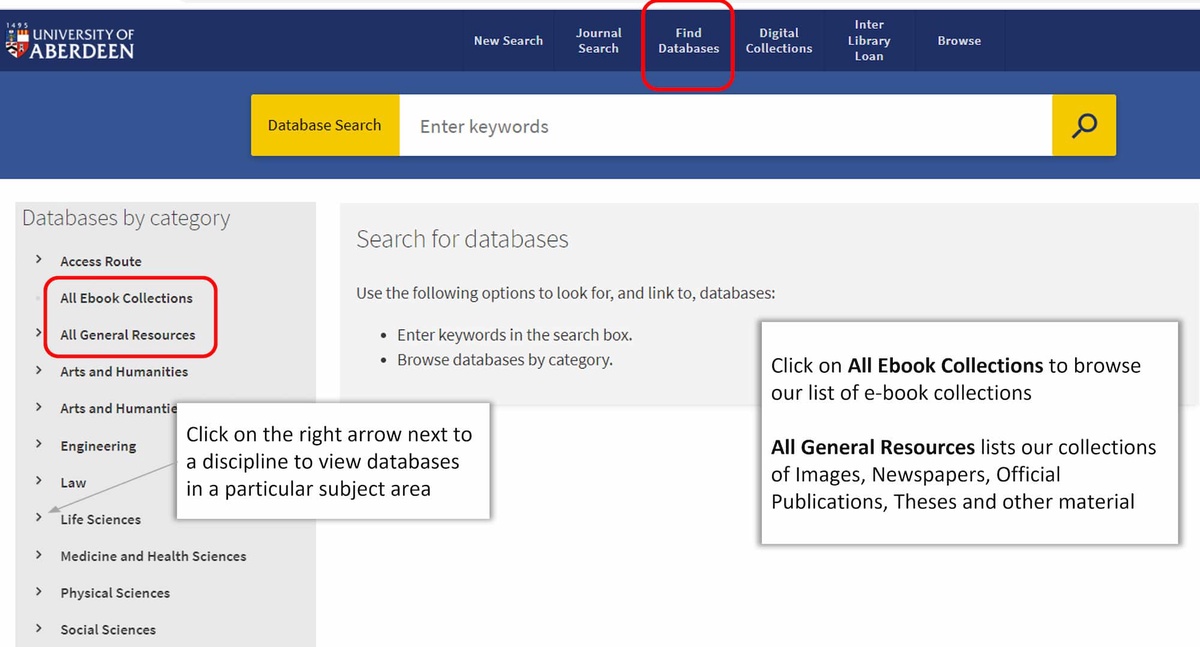
- Accessing Databases and e-book Collections
-
If you know the database or e-book collection you wish to search, enter its name into the search box.

Note: it is important that you Sign in to Primo before accessing any databases or e-book collections.
- My Library Card
-
Members of the University and external members: to view your borrower record, change your PIN, renew books or access saved records and previous searches, click on your name in the top right corner of Primo. Your loans and requests can be found under Library Card.
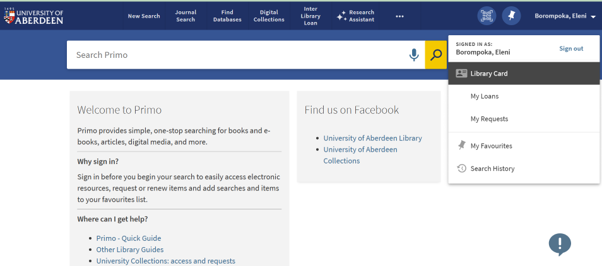
From the Loans section in your borrower record you can renew items. Please note that Heavy Demand items cannot be renewed online.
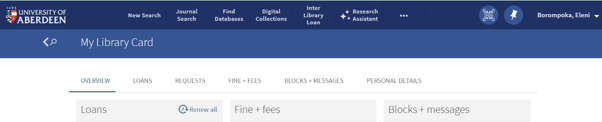
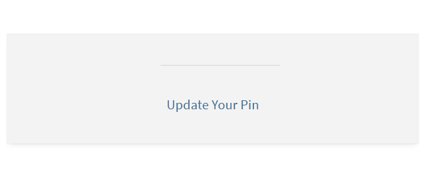
To create a PIN or change your existing one, click on Personal Details and select the Update Your Pin option. You can use your PIN on the self-issue machines, allowing you to borrow items without staff assistance.
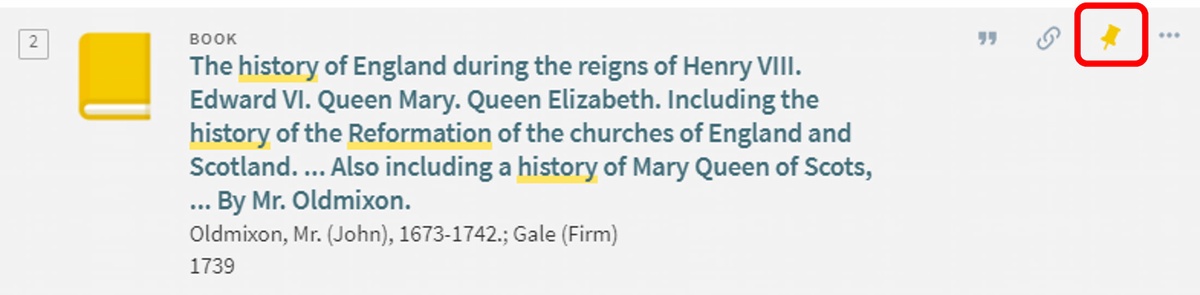
To view your list of saved items, click on My Favourites within your borrower record. Items can be added to your favourites by clicking the pin icon to the right of the relevant record on the results list.
Questions?
For IT-related queries, use the IT Service Desk chat service at https://myit.abdn.ac.uk or email servicedesk@abdn.ac.uk
You can also visit the IT Service Desk (Mon-Fri during business hours)
- The Sir Duncan Rice Library, 1st Floor
- Medical Library, Polwarth
Library staff are here to help with any questions you may have on Primo or any of our other resources:
For subject-related enquiries, please get in touch with the Information Consultant for your subject. Contact details can be found here. Alternatively, email library@abdn.ac.uk
Revised by Eleni Borompoka in March 2026