
- The use of AI tools in coursework varies across courses
- Some courses may allow limited use of this tool, while others may prohibit it entirely
- Always check your course guidance or ask your course coordinator before making use of Generative AI tools to ensure you're complying with expectations around academic integrity
Primo Research Assistant is a search feature in Primo, the Library’s discovery service. It is a generative AI-powered tool that enables you to search Primo using natural language questions, supporting research questions in multiple languages.
It searches abstracts from selected academic sources, retrieves and displays the 5 most relevant sources as ranked by the tool. It then generates an overview from the abstracts of these sources. The overview includes in-text citations to connect that part of the overview to the relevant result.
This tool works best with a clear and detailed question with a question mark at the end. The main Primo search screen is more appropriate for keyword searches.
It is important to note that Primo Research Assistant is not a comprehensive search tool and is not to be used instead of more robust platforms, e.g. the Library’s database subscriptions. It may give you a starting point for your topic, but it is your responsibility to critically evaluate any information you find before submitting academic research for assessment.
- Responsible Use of Primo Research Assistant
-
The use of AI tools in coursework varies across courses. Some courses may allow limited use of this tool, while others may prohibit it entirely. Always check your course guidance or ask your course coordinator before making use of Generative AI tools to ensure you're complying with expectations around academic integrity.
Before using the Primo Research Assistant (RA) you need to be aware that:
- Ask clear, focused questions ending in a question mark. Primo supports natural language queries so one-word prompts may not retrieve any resources.
- Only a limited number of sources will be retrieved. To ensure you access relevant resources, conduct keyword searches on Primo’s main search interface.
- Generated overviews are based on abstracts, not full text. They therefore lack details, miss nuance and context – always read the full text when citing sources.
- Check generated summaries for bias and errors. AI overviews may misrepresent ideas or reflect bias – always evaluate sources yourself.
- Don’t copy and paste generated text. Your own analysis and interpretations of the full text are essential – only paraphrase and quote from the original source.
- Generative AI tools consume more energy than regular search tools. Only use Primo RA when it adds value to support the University’s commitment to sustainability.
While AI tools may seem to offer quick answers, effective research is an iterative process. For good academic practice you need to search in multiple ways, refine your approach, and engage deeply with both primary and secondary sources. Education depends on curiosity and critical thinking. Shortcuts may seem easier, but they limit your learning.
For more information, see the University guidance on Generative Artificial Intelligence (GenAI) tools.
There is guidance on Academic Integrity & Referencing in the Toolkit.
- Ask clear, focused questions ending in a question mark. Primo supports natural language queries so one-word prompts may not retrieve any resources.
- How to use it
-
- Open and sign into Primo (Sign in button in top navigation bar)
- Open Research Assistant (top navigation bar)
- Enter a clear and detailed question ending with a question mark, e.g.: what impact did social change have on health in the middle ages?
- Click on the icon beside your question to display the filters:

Click on the arrow on the right-hand side of the box to run the search.
The sources will appear under your question:

Click on a source to see if the full text is available.
The overview will appear below the sources:

If you find the overview unsatisfactory, try one of the following:
- Under Overview of sources, click on the Try again option; the second Try will appear below the first
- Under Overview of sources, select one of the Related research questions
- Click on Start a new topic and enter a new clear and detailed question ending with a question mark
- To the right of the five sources, click on View more results.
Clicking on View more results will open the default Primo search screen. Your question will be changed into a more traditional search strategy and will search All Collections. The search strategy can be seen in the All Collections search box.
Everything in All Collections will now be searched, including our local collections, and content from JSTOR, Elsevier and APA. You can apply the filters in the left-hand panel to refine your results.
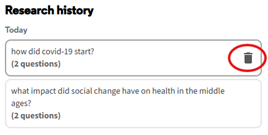
Your previous research questions will be saved between sessions, but you have the option to delete them:
- Open and sign into Primo (Sign in button in top navigation bar)
- Limitations - Content
-
Primo Research Assistant searches the Primo Articles+ index. It also searches content where we do not have access to the full-text.
This means if the material is not listed in Articles+, it will not be searched. For example, content unique to Westlaw UK or Lexis+ is not listed in Articles+, so Primo Research Assistant will not search these titles.
Currently, Primo Research Assistant does not search:
• our local collections, e.g. Books+
• newspapers
• APA, Elsevier and JSTOR content, even if it’s available through a different provider
• withdrawn or retracted content
• content with insufficient metadata and abstracts
- Limitations - Unique Results
-
As discussed in the How to use it section of this guide, it is possible to rerun your search question. However, as with many Generative AI tools, the results of your search and the overview will differ from one search to the next.
Currently, each question stands alone. This means it will not understand that multiple questions are related.
- Limitations - Bias and Filtering
-
Biases can be present in research literature, and this will feed into generative AI responses. Primo Research Assistant may misinterpret a source that already has a bias, so it is essential that you critically evaluate any information before you submit academic research for assessment.
Primo Research Assistant is based on a Large Language Model (LLM) produced by Azure OpenAI. Many LLM algorithms have what are known as guardrails; these filter out topics considered by the company to be controversial or sensitive. If this happens, you may see this:
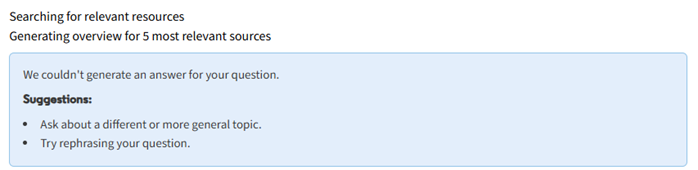
In this instance, click on Start a new topic and enter a new clear and detailed question ending with a question mark.
Alternatively, you may see this:

In this instance, try one of the following:
- Under Overview of sources, select one of the Related research questions
- Click on Start a new topic and enter a new clear and detailed question ending with a question mark
- To the right of the five sources, click on View more results to link through to All Collections
- Further Information
-
Please note that Primo Research Assistant is still being developed. Some features have moved or been developed since the making of this video from Ex Libris.
For advice on searching the Library’s collections, see our guides on Primo.
Further advice on critical evaluation can be found in the Library’s Information Literacy guides.