
Introduction
This guide is an introduction to the database for health science, CINAHL, which is available via EBSCOhost.
If you would like more help with using the database please contact the Medical Library - email: library@abdn.ac.uk
Content
1981 - present CINAHL provides indexing for over 3,100 journals from the fields of nursing and allied health. The database contains nearly 4 million records dating back to 1981. Offering complete coverage of English-language nursing journals and publications from the National League for Nursing and the American Nurses' Association, CINAHL covers nursing, biomedicine, health sciences librarianship, alternative/complementary medicine, consumer health and 17 allied health disciplines. CINAHL also offers access to health care books, nursing dissertations, selected conference proceedings, standards of practice, educational software, audiovisuals and book chapters. Searchable cited references for more than 1,300 journals are also included. Full text material includes 70 journals plus legal cases, clinical innovations, critical paths, drug records, research instruments and clinical trials.
Access information
Access is via Primo, the University of Aberdeen Library's search discovery tool, which can be found via the Search Our Collections tab on the library homepage or within the Collections and Searching tab on the library webpages. As with all databases the University subscribes to, CINAHL can be accessed both on and off campus. Simply enter the name of the database you want to search, i.e. CINAHL, into the Name field of the Find Databases tab in Primo and click on the button. When the results appear, click on the CINAHL (EBSCO) link. Login using username@abdn.ac.uk (e.g. u99jb22@abdn.ac.uk or s01ep2@abdn.ac.uk) and your password.
An alternative route is to go directly to the EBSCOhost website.
Go to the EBSCOhost login page :
1. In the 'Let's find your institution' box enter University of Aberdeen
2. In the list that appears select University of Aberdeen
3. You will be prompted to log in via the your University of Aberdeen Microsoft365 account. Sign in using username@abdn.ac.uk (e.g. u99jb22@abdn.ac.uk or s01ep2@abdn.ac.uk) and your password.
4. You may be prompted to use the multifactor authentication app to authorise
After the login has processed, EBSCOhost will open. Select EBSCO Databases.
Scroll down the list of databases and click on the CINAHL entry.
Problems?
If you are having difficulty accessing the database, please ask the library staff - we are always happy to help. The Medical Library Enquiry Desk is open Monday - Friday from 9.00am-11.30am and 2pm-4.30pm.
Search rules
1. In the Advanced Search there are 3 search boxes. These boxes allow different fields to be selected using drop-down menu options. Enter a search term in any field of your choice; you don't need to fill each box. You can add up to 12 search boxes.
2. Combine and separate your search terms using the Boolean Operators AND or OR or NOT; use parenthesis for combinations of Boolean operators, e.g. (puberty OR adolescence) AND alcohol; use quotation marks for “exact phrases”, e.g. “alcohol abuse”.
3. You can expand your search using the truncation symbol * e.g. depress* finds depression, depressed and depressive.
4. ? is a wildcard to signify a single letter within or at the end of a word e.g. wom?n finds woman or women; alcohol? finds alcohol, alcoholism, or alcoholic.
Starting your search
We advise you to search for your term(s) using both Subject Headings and natural language.
Searching for your term using the CINAHL Subject Headings
1. Using the Advanced Search option, select the CINAHL headings tab and type your first term into the search box. Click the Search button. The thesaurus within CINAHL is made up of over 12,700 subject headings. When you conduct a keyword search using the CINAHL subject headings, the database will search for your term (and its synonyms) by checking the thesaurus using the preferred term. This is a good way to search as the thesaurus does the work for you, retrieving the total concept (e.g. the concept alcoholism will find that term, but also Alcohol Dependence Syndrome; alcohol addiction; alcohol dependency). 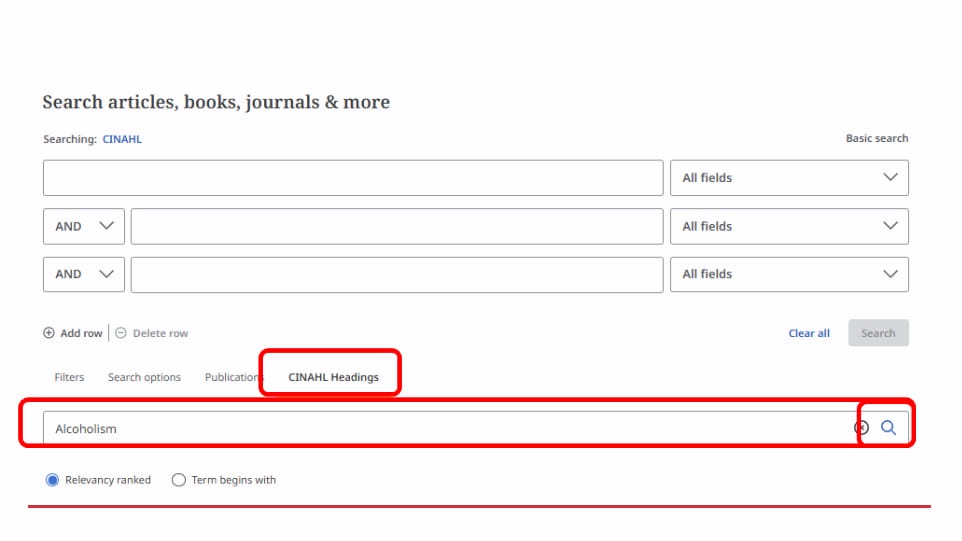
2. A list of CINAHL Headings will now be displayed below. To use the Scope function click on the term you wish to look at. This will open the Scope note (CINAHL’s definition of the term), but also a list of related headings and the database’s index Tree information. 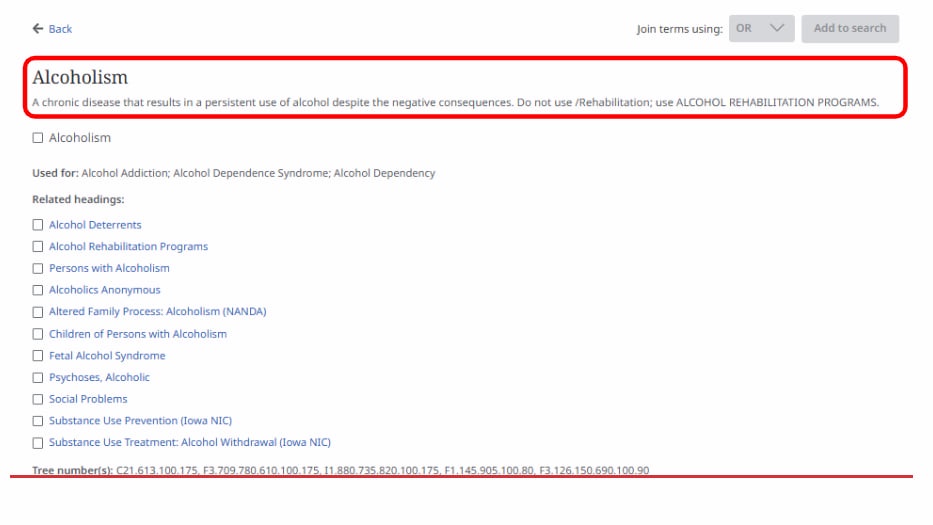
3. Use the “back” link to go back to the previous page. From here you can select your preferred term and a list of the term's Subheadings will appear. Select any relevant subheadings and click the Add to Search button in the top right-hand corner. Repeat this for any other subject headings relevant to your search.
4. There are two further search options available: Explode and Major Concept.
Explode: if you select the Explode option, your results will include all of your concept's narrower related terms. As such, this option will increase the number of results. To view those terms, click on the subject heading to see the Thesaurus Tree.
Major Concept: if you select the Major Concept option, your results will only include articles where your concept is the main thrust of the paper. As such, this option will reduce the number of results.
5. Select the relevant subject headings and click the Add to Search button to view your results.
6. To combine your searches, see section on Combining your terms and limiting your results.
Searching for your term using Natural Language
There are two ways to search using natural language:
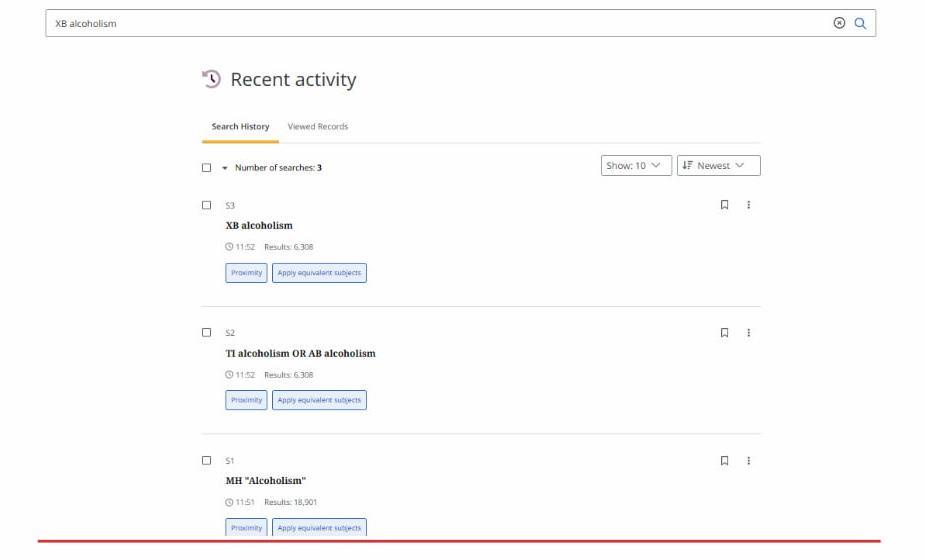
1. Using the Advanced Search option, type TI followed by your term, then OR, then AB followed by your term (e.g. TI alcoholism or AB alcoholism). TI stands for title and AB stands for Abstract. Click the Search button.
2. Using the drop down menu next to the search box, select the filter for Title and Abstract -XB. 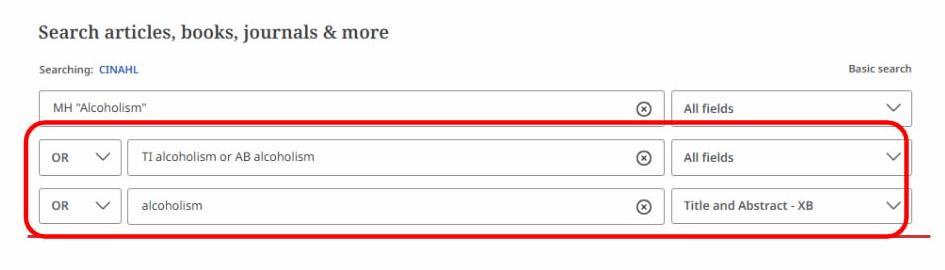
Click the Search button.
Beware: When you search using natural language, you will not retrieve singular/plurals, American/UK spellings e.g. mouse/mice, esophagus/oesophagus. Natural language searching can be used where a subject heading search gives nothing useful, but should be used with care - subject heading searching is usually more accurate.
Combining your terms and limiting your results
Once you have looked for one or more term(s), select the Recent Activity tab on the left hand side of the search boxes. Your search history will appear below the search box. The Search History will show your searches like this: 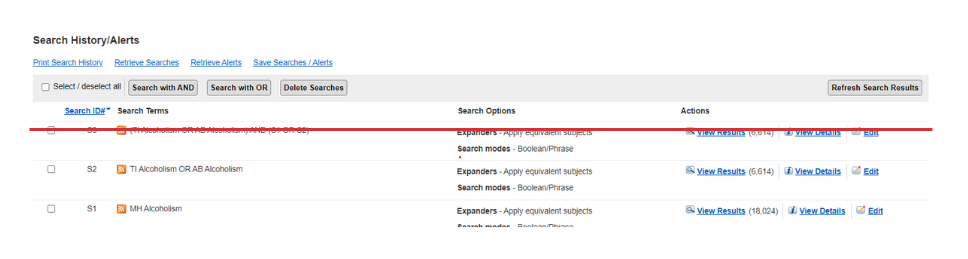
Combining search terms
There are two ways to combine search terms:
1. Select the searches that you want to combine by clicking on the searches' check-boxes in the left- hand column. Click on either the Combine with AND or Combine with OR or Combine with NOT button. Ensure that the top search field of the three lines above the Search History section is blank before you do this. 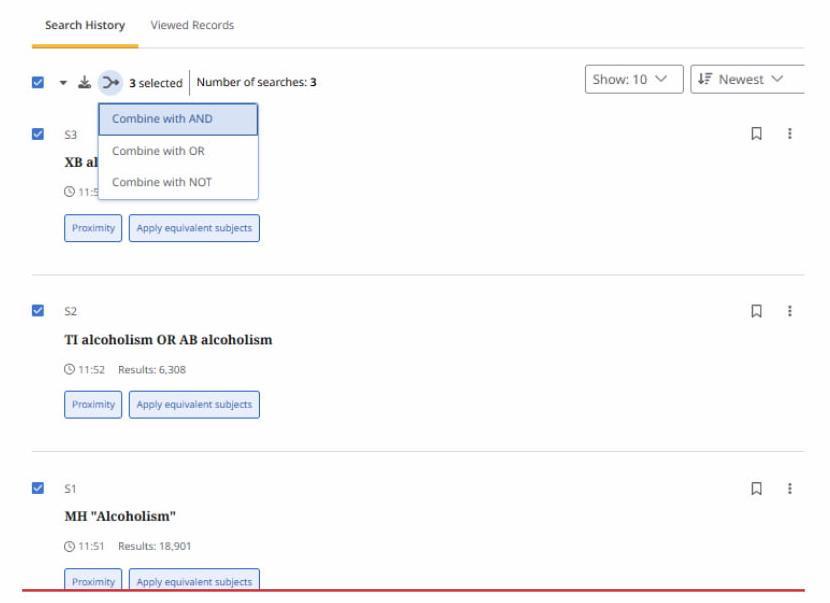
2. Alternatively, type your set numbers (e.g. S1 and S2; S2 or S5) in the standard KEYWORD search box using AND or OR or NOT to combine the search terms.
Both options will result in below – you will need to click the search icon to complete the combined search. 
AND narrows your search. It will only retrieve results where both terms occur in the same reference.
OR broadens your search. It will retrieve results on Term 1 or Term 2 whether or not they are related.
NOT removes an unwanted term from any set.
Limiting your results
It is possible to focus your results further. CINAHL allows you to apply pre-set limits, e.g. specific age ranges; date range; type of publication etc.
For the full range of limits, click on the All filters button below the search results box.
Displaying the results
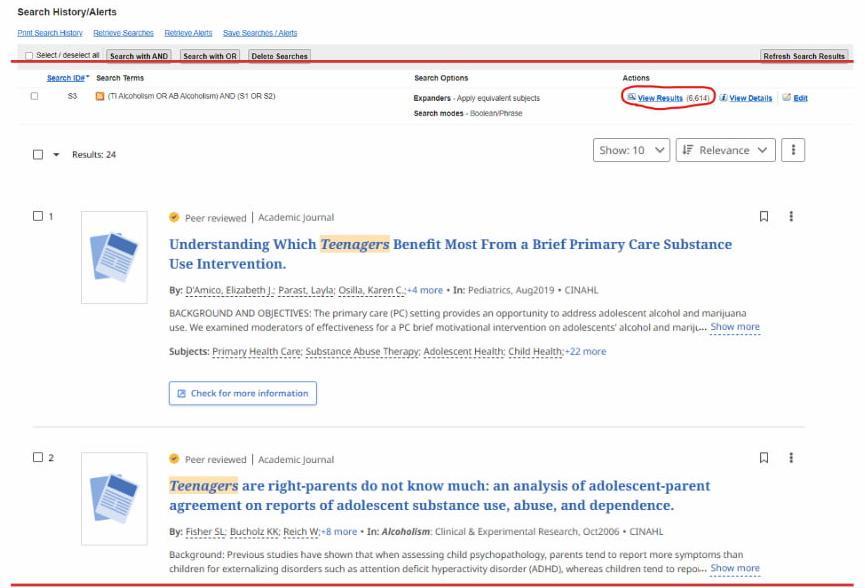
1. Results are automatically displayed.
2. The search results can be re-sorted using the Relevance Sort drop-down menu above the list of results.
3. To read the abstract, click on the show more option underneath the title in the results list.
4. Click on the Check for more information button to link to University journal subscriptions.
5. Once the "Check for more information" window is open, there may be a link to the full-text online.
Saving and exporting results
Saving, emailing and printing your references
- Within Search History you can either save the search or add it to a project folder, so you can retrieve it later. To do this you can select the bookmark icon next to the search string or the

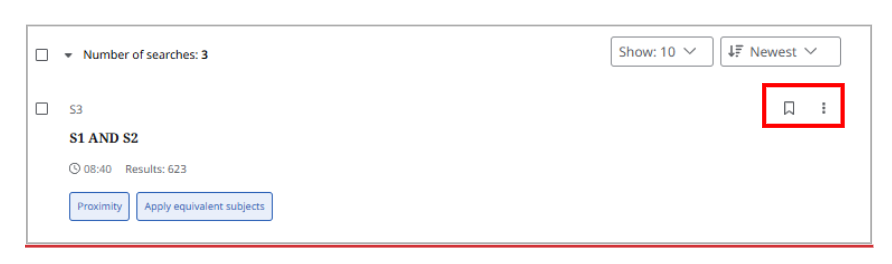
- To save individual citations you can follow the steps above from the results page.
- To save multiple citations click the drop-down menu next to the Results number.
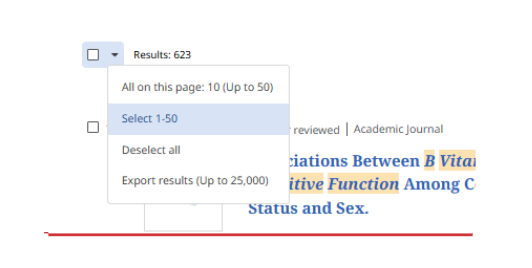
Then click either All on this page or Select 1-50. Results numbers to be added will change as you view different pages of your list of results. You can change how many results are displayed per page using the Page Options menu at the top of the results list. - You can view your saved search results or project by clicking on the relevant icon in the left-hand column of My Dashboard.
- From these pages you can then use the icons to choose the option to export; download; or share your search results.
Exporting bibliographic details to a reference management package such as ProQuest RefWorks
If you want to export your results without saving your searches you can do so from the results page. You have two options:
- Export directly to ProQuest RefWorks by using the drop-down menu and Select (1-50). Choose the Cite button and then the Export citation tab. From here you can select Export to RefWorks.
The RefWorks login screen will open. Log in to your ProQuest RefWorks account.
Your references from CINAHL will be brought in automatically to the Last Imported folder in ProQuest RefWorks.
- From the drop-down menu choose Export results (Up to 25,000), you will be prompted to enter your email address and select the file type you wish to export to.
A file will then be emailed to your email address which you can then download and import into ProQuest RefWorks. For more information on how to do this please see our library guide on using ProQuest RefWorks.
Please note: You will need to create a MyEBSCO account to export more than 50 results at a time. Please see the Personal Account section below for instructions on how create an account.
Personal Account
A Personal Account with EBSCOhost allows you to create and maintain a private workspace for your saved search strategies and AutoAlerts. To create a Personal Account do the following:
- Log in to EBSCOhost using your University username and password.
- Once in EBSCOhost, go to the main search page within CINAHL. Click on MyEBSCO (on the top right screen) and click on Create an Account and complete the form.
Edited by Rebecca Hankinson and Mel Bickerton, December 2025